Exploring the developer ecosystem on Huawei MateBook Pro
Date: 2026-01-18
Back in mid-2025, I stumbled upon the MateBook Pro in a Huawei flagship store in Shenzhen. The laptop caught my attention since it came pre-installed with Huawei’s very own HarmonyOS 5 operating system, otherwise known as HarmonyOS NEXT.
Unlike previous HarmonyOS releases such as HarmonyOS 4 which were based on Android, specifically the Android Open Source Project (AOSP), HarmonyOS NEXT features a fully independent software stack ranging from Huawei’s proprietary HongMeng kernel, to the Kernel Abstraction Layer (KAL) and userspace based on the OpenHarmony project and HarmonyOS-native applications. It’s not common to find a laptop or PC in the wild which is pre-loaded with an operating system distinct from Windows or macOS so I decided to purchase it and give it a try.
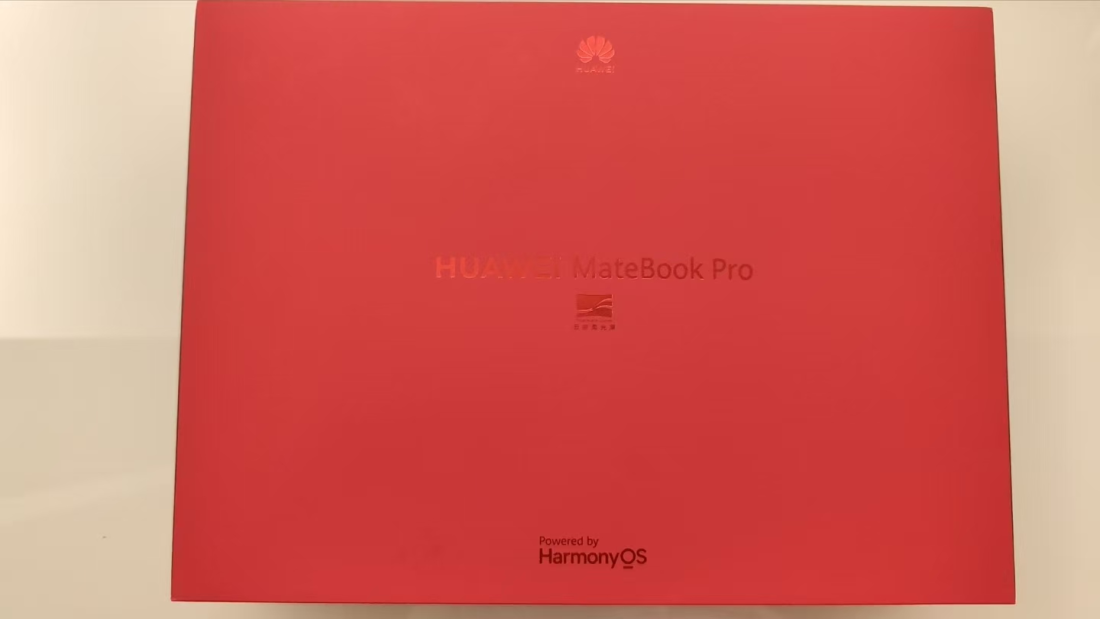
I purchased the MateBook Pro with the highest form factor of 32G RAM and 2T of storage. The laptop came with an extravagant red casing.
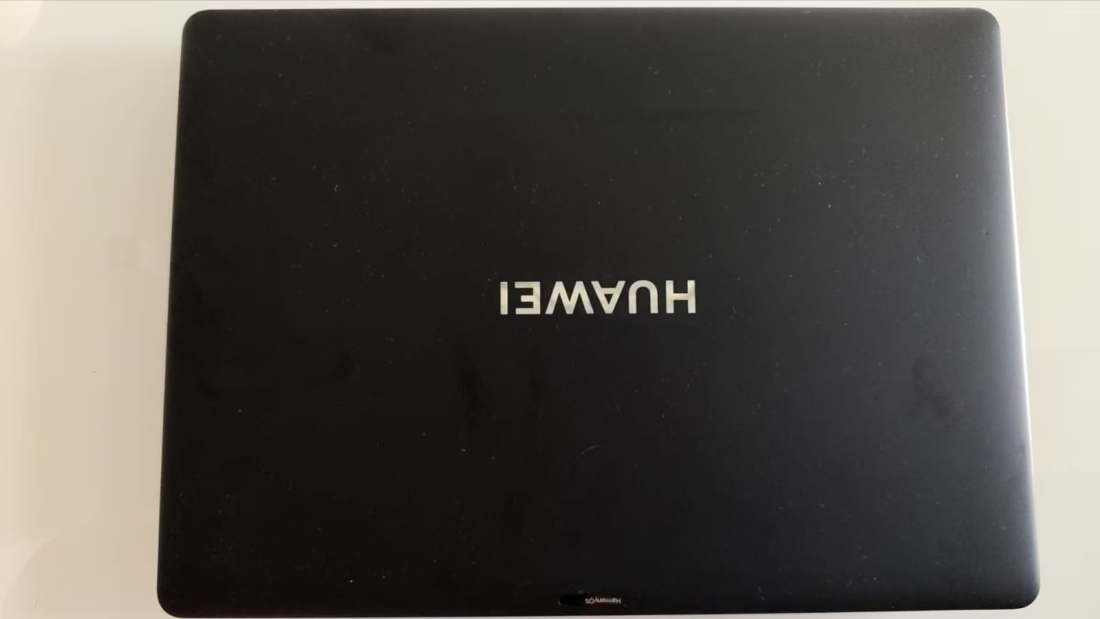
At the time of purchase, HarmonyOS NEXT came with software for everyday usage and lightweight business apps such as WPS Office, a Chinese alternative to the Microsoft Office suite, as well as virtualization software such as OSEasy which allowed running Windows 10 alongside HarmonyOS, similar to Parallels Desktop on macOS. Unfortunately, it was lacking in developer tooling and ecosystem with no proper IDE and a locked down terminal application called HiShell with limited functionality and no path to elevated access such as “Run as Administrator” or sudo.
By the end of 2025, the next major version of HarmonyOS known as HarmonyOS 6 was out and generally available. I updated my MateBook Pro to HarmonyOS 6 and was pleasantly surprised to see the addition of developer tooling in the Huawei AppGallery such as the native CodeArts IDE software as well as various officially supported applications by recognized third-party developers and noteworthy usability improvements in the built in HiShell terminal application. AppGallery is the officially approved and vetted app store for HarmonyOS, similar to the Apple App Store on macOS.
This blog post introduces a subset of the developer tooling and ecosystem present in HarmonyOS 6 which I found interesting or useful, and various aspects where I think it can be further improved.
Super Privacy Mode - hardware-native privacy controls
If there’s one thing privacy-conscious users are looking for in the MateBook Pro, it’s the Super Privacy Mode built straight into the laptop as a hardware kill switch. Enabling and disabling Super Privacy Mode is as simple as flipping the kill switch to the right which toggles the ability for applications to access your laptop camera, microphone and geo-location information.
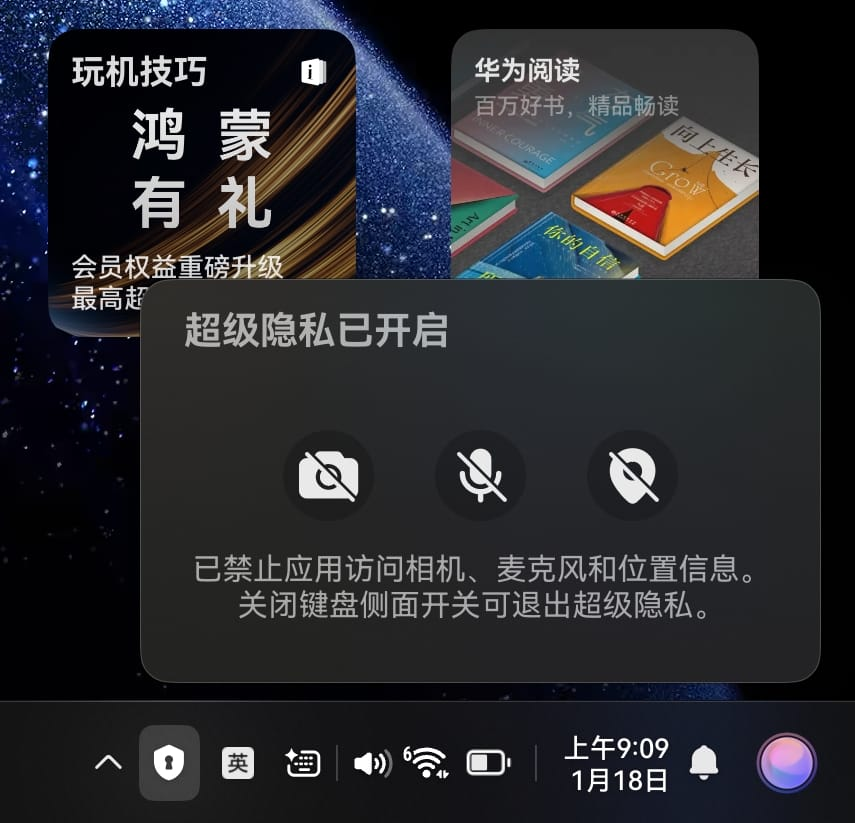
That’s right - no application, system or kernel-level controls to disable these peripheral devices in software. Using a pure hardware-based approach ensures that attackers can’t steal your location, voice or video feed even if they manage to breach your operating system as long as the kill switch is active.
Celia - OS-native AI assistant
HarmonyOS 6 includes a built-in AI assistant Celia which is deeply integrated with the OS itself. As you might expect in 2026, Celia is LLM-based and can produce coherent, practical answers to a range of enquiries, including developer use cases such as code generation. Furthermore, the “Deep Thinking” feature can be optionally enabled per prompt to produce a more detailed and accurate response at the expense of a few additional seconds in response time.
Below is an example of Celia generating an Argo CD Application template based on user enquiry with Deep Thinking enabled, a common use case for Kubernetes developers and administrators.
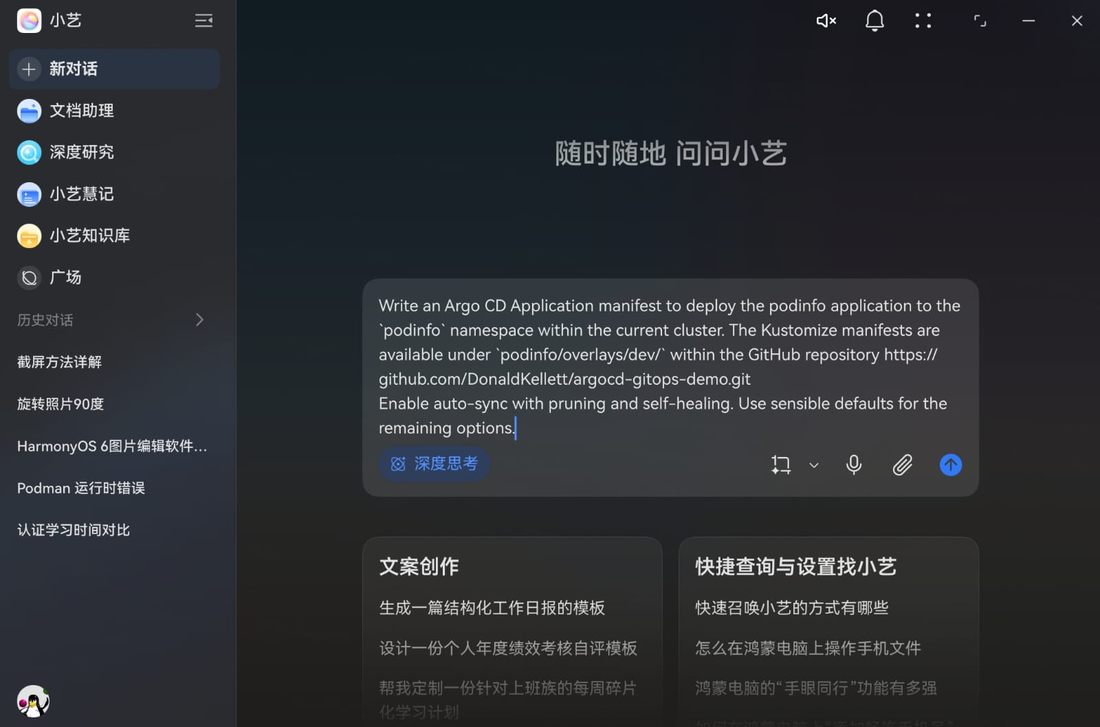
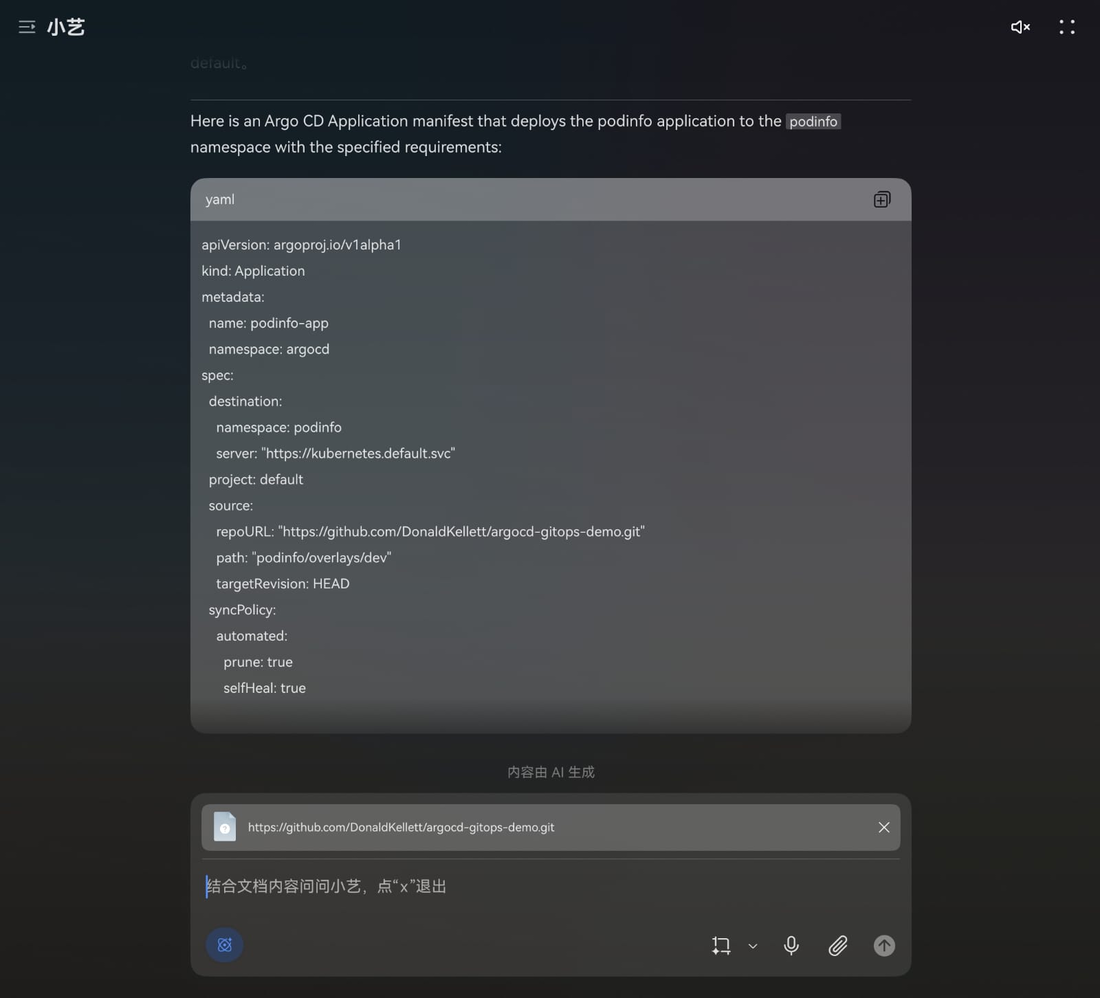
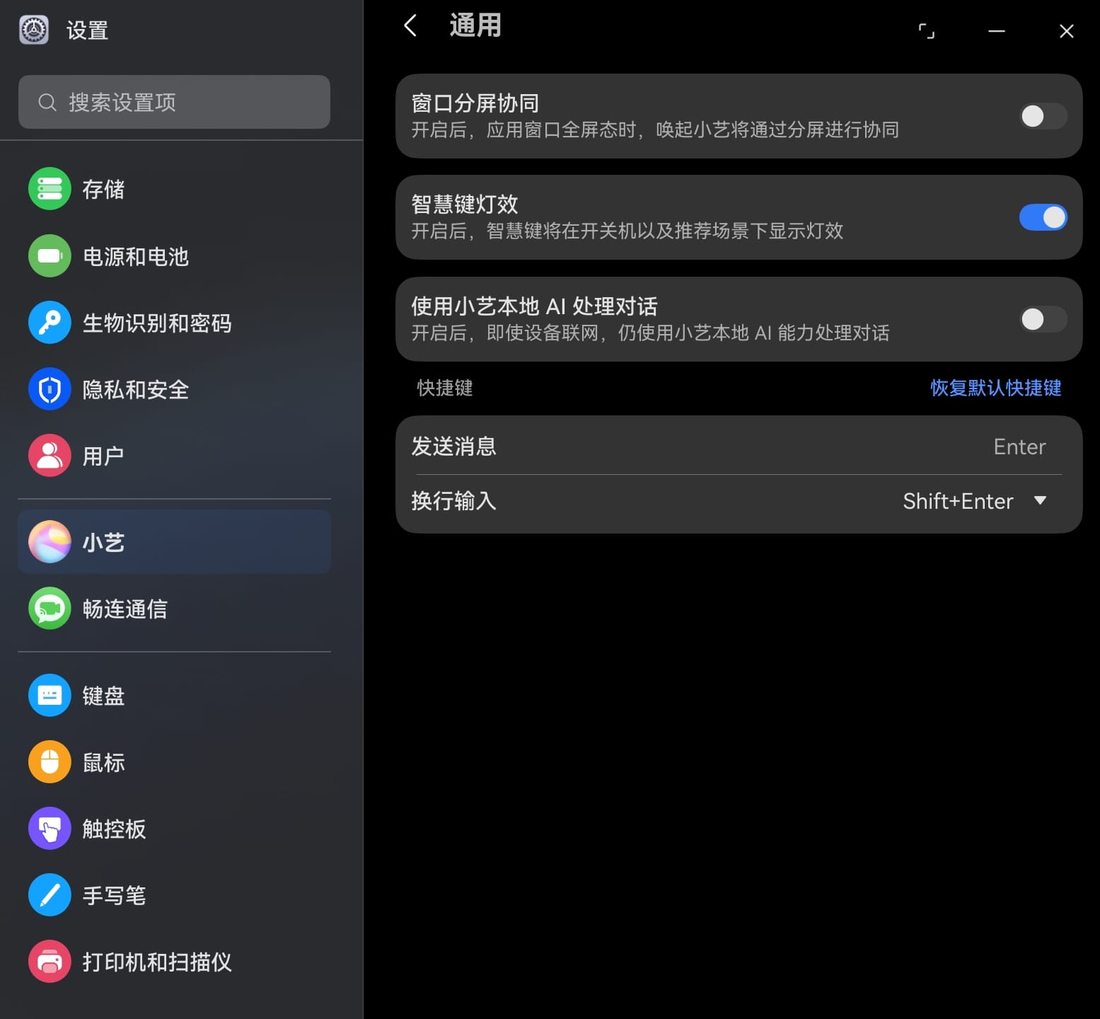
A noteworthy differentiator of Celia against SaaS-based LLMs such as Microsoft Copilot, Gemini or Grok is the ability to work offline in the absence of a functional Internet connection. For privacy-oriented users, an option is also available to default to the locally-hosted AI model under “Settings” even within a connected environment. This ensures that user prompts containing sensitive information are not forwarded unconditionally to the SaaS-based LLM service.
CodeArts - Official IDE for HarmonyOS from Huawei
CodeArts is the official IDE developed by Huawei. It was originally available for supported Windows and macOS versions only but was recently introduced in HarmonyOS 6 as well.
The welcome page shows that there are currently 4 mainstream programming languages that are supported by CodeArts:
- Java
- Python
- C/C++
- JavaScript
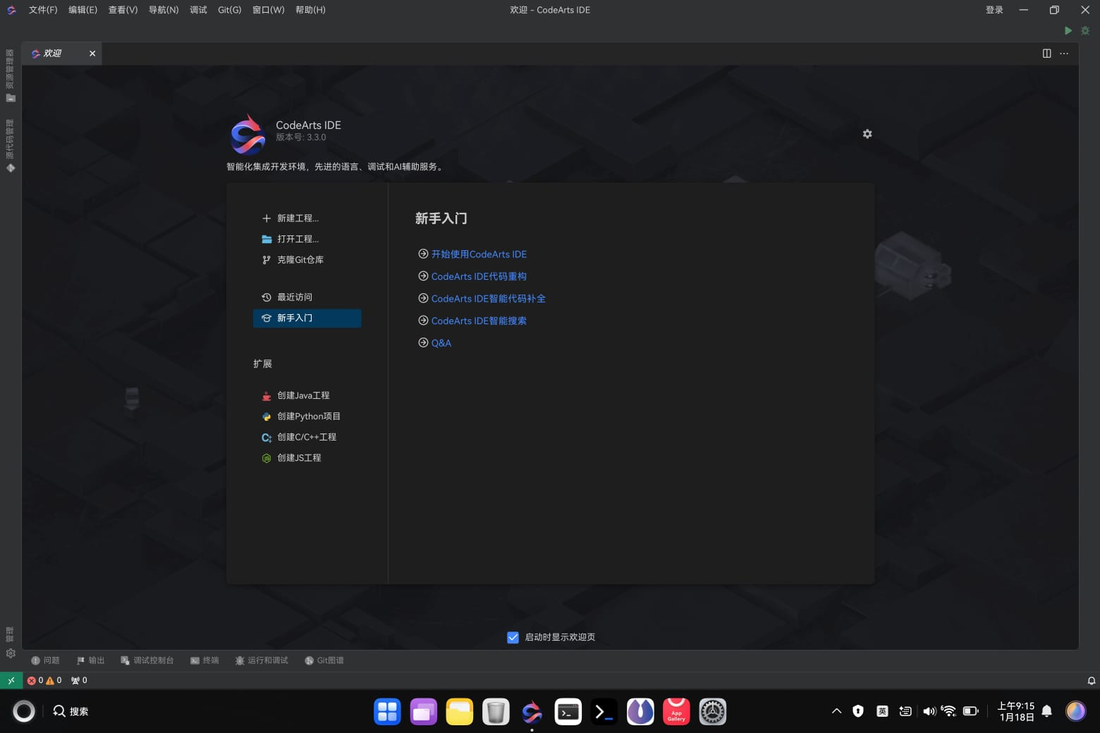
CodeArts supports Git-based workflows as well, creating new Git repositories and importing existing Git projects.
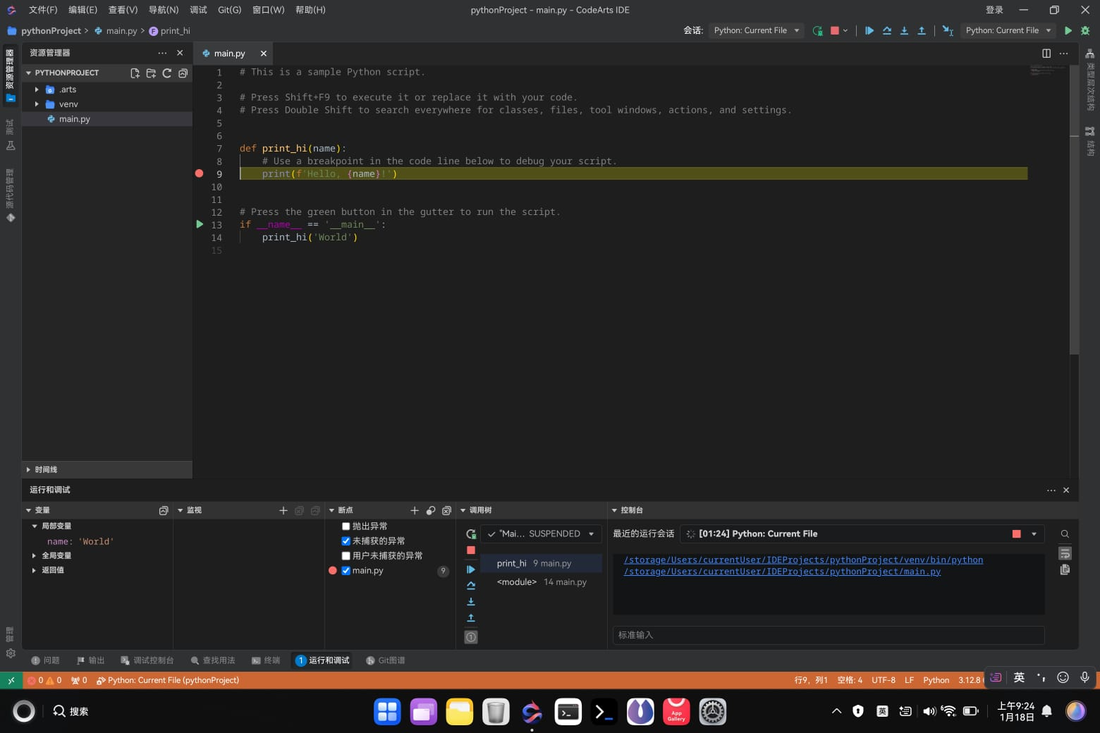
Creating a new project is easy. Creating a new Python project displays a menu dialog including options following Python recommended best practices such as creating a dedicated virtual environment for the project and initializing a unit testing framework such as pytest.
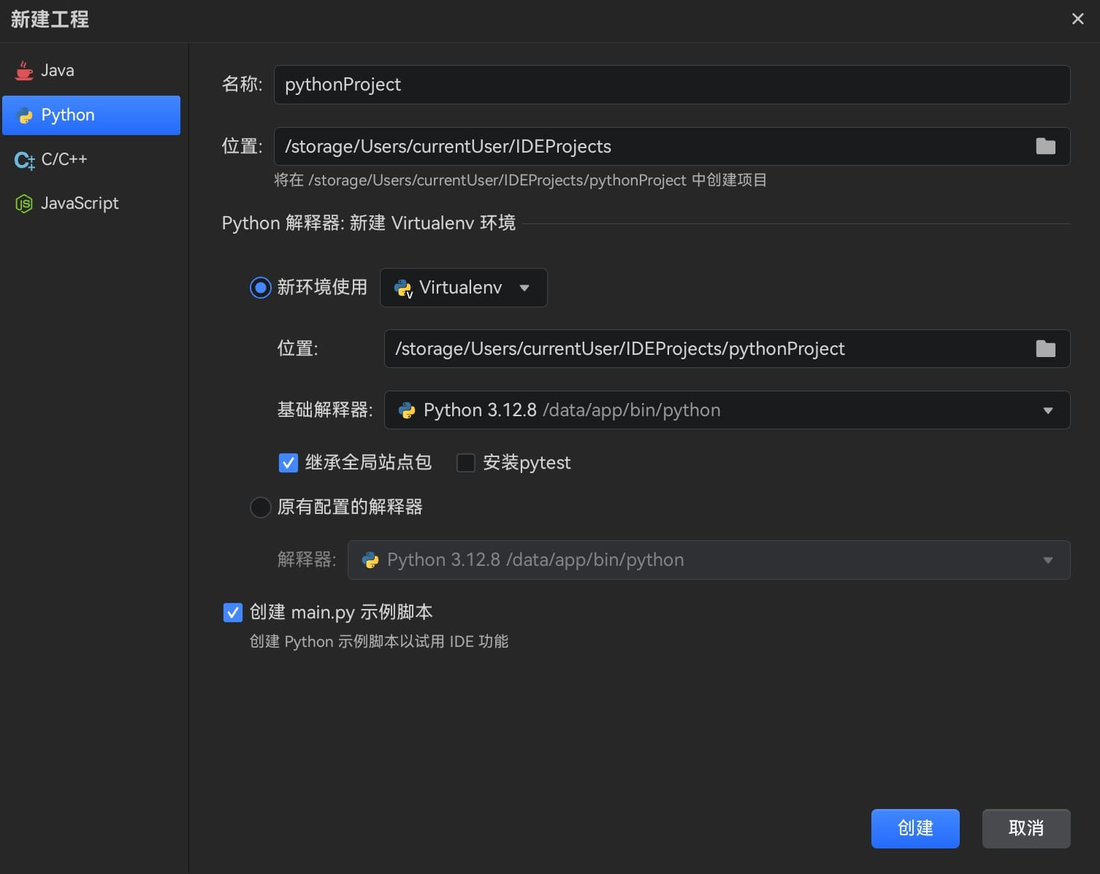
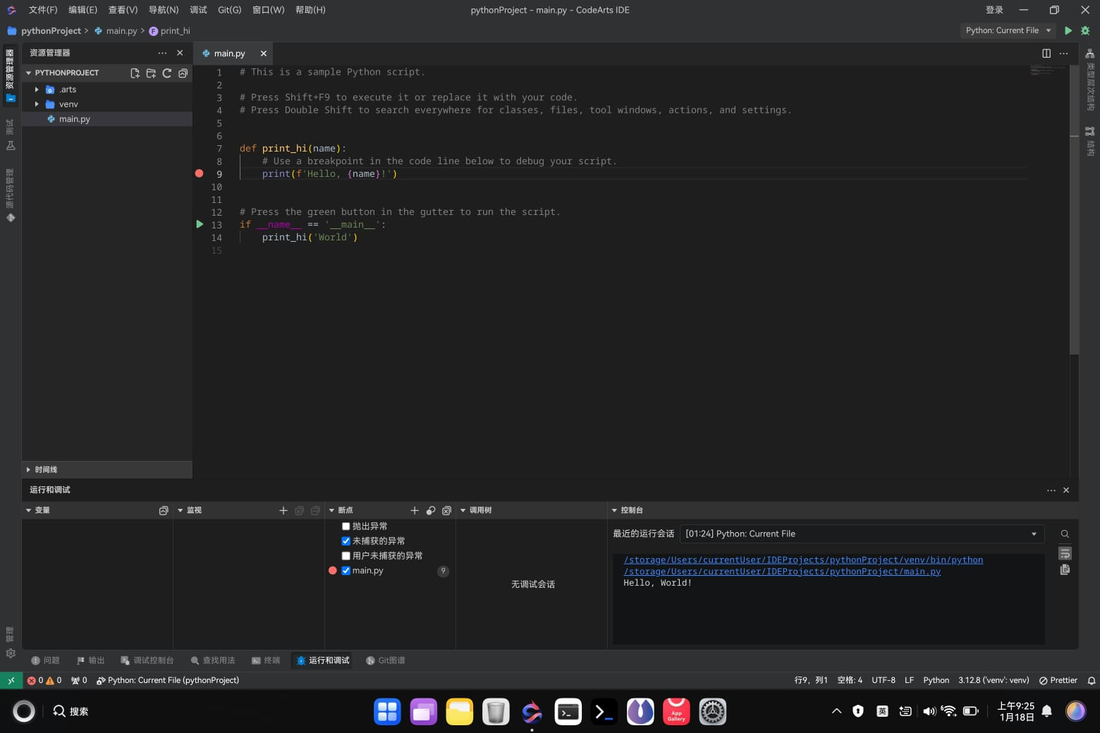
The newly created projects includes a minimal example of working code and allows setting breakpoints for debugging as well as normal program execution right within the IDE environment.
HiShell - System-native terminal application
HarmonyOS includes a native terminal application known as HiShell. HarmonyOS 6 introduces usability improvements to HiShell such as a basic command-line user guide, the ability to elevate privileges with sudo and the introduction of additional command-line utilities for administration tasks and troubleshooting.
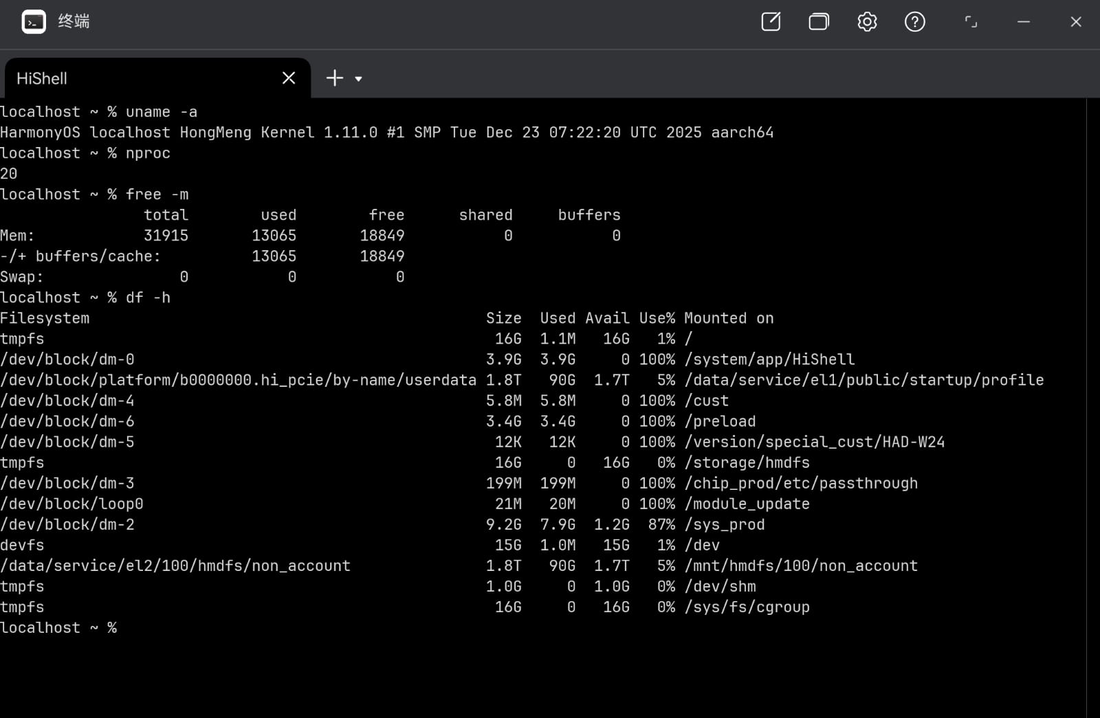
Expanding the dropdown menu next to the “+” new tab button reveals 2 options:
- HiShell: system-native terminal
- openEuler (not installed): Linux terminal, perhaps similar to WSL2 on Windows?

Unfortunately, I could not find how to install openEuler to enable the Linux terminal feature. Perhaps the openEuler terminal is a work in progress and hopefully it will provide feature parity with WSL2 on Windows once it is generally available.
HiSH - Full-fledged Linux emulator for developers and enthusiasts
In search for a comparable alternative to WSL2 for HarmonyOS, I stumbled upon an open source project created by a HarmonyOS enthusiast called harmoninux/HiSH. HiSH uses QEMU system emulation to emulate a complete Linux-based operating system with a specified kernel and rootfs image.
Previously, HiSH was only available on GitHub and had to be compiled from source. Fortunately, it was officially approved and landed on AppGallery recently so installing it on my MateBook Pro is a single click away.
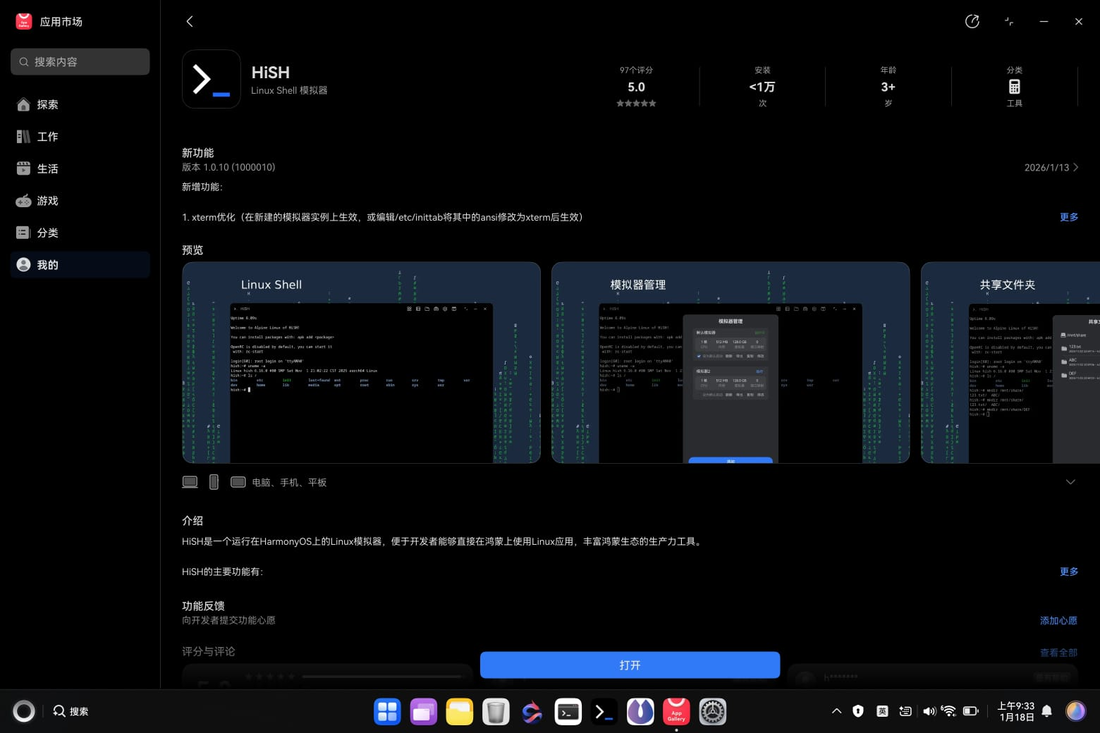
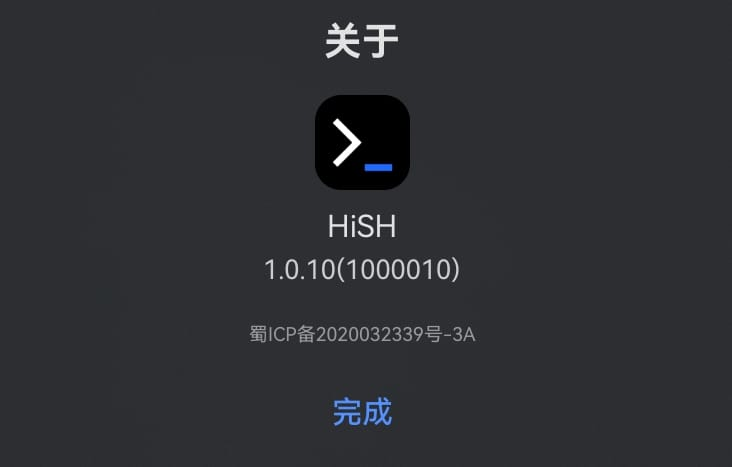
The version of HiSH from AppGallery is 1.0.10 at the time of writing.
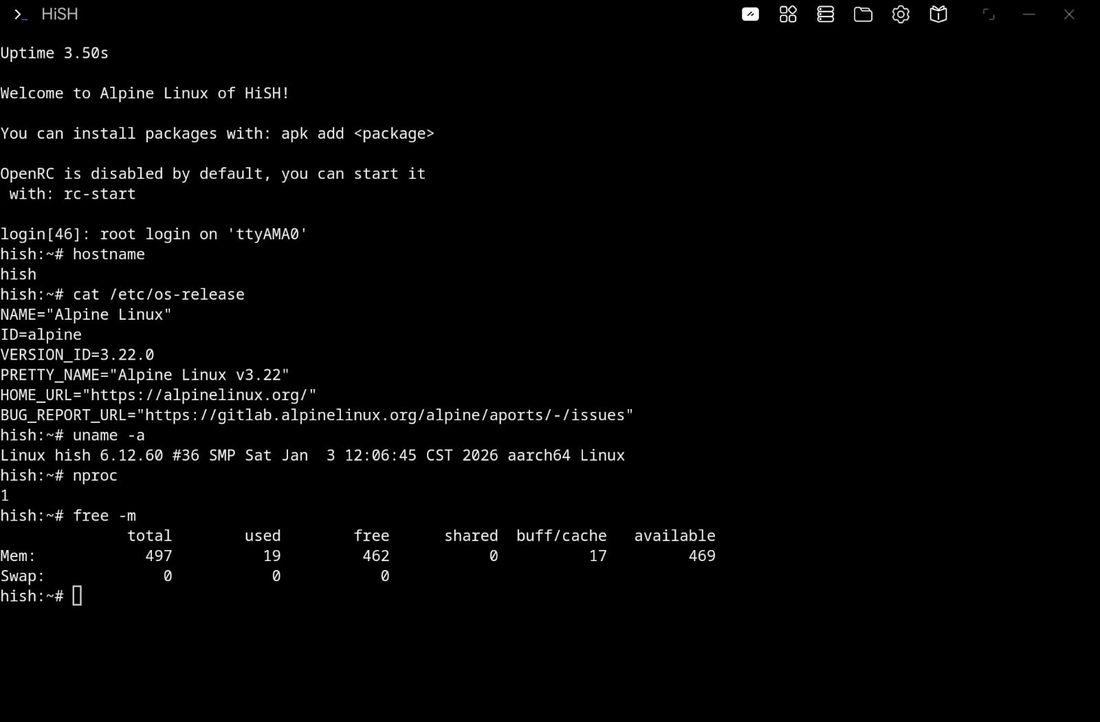
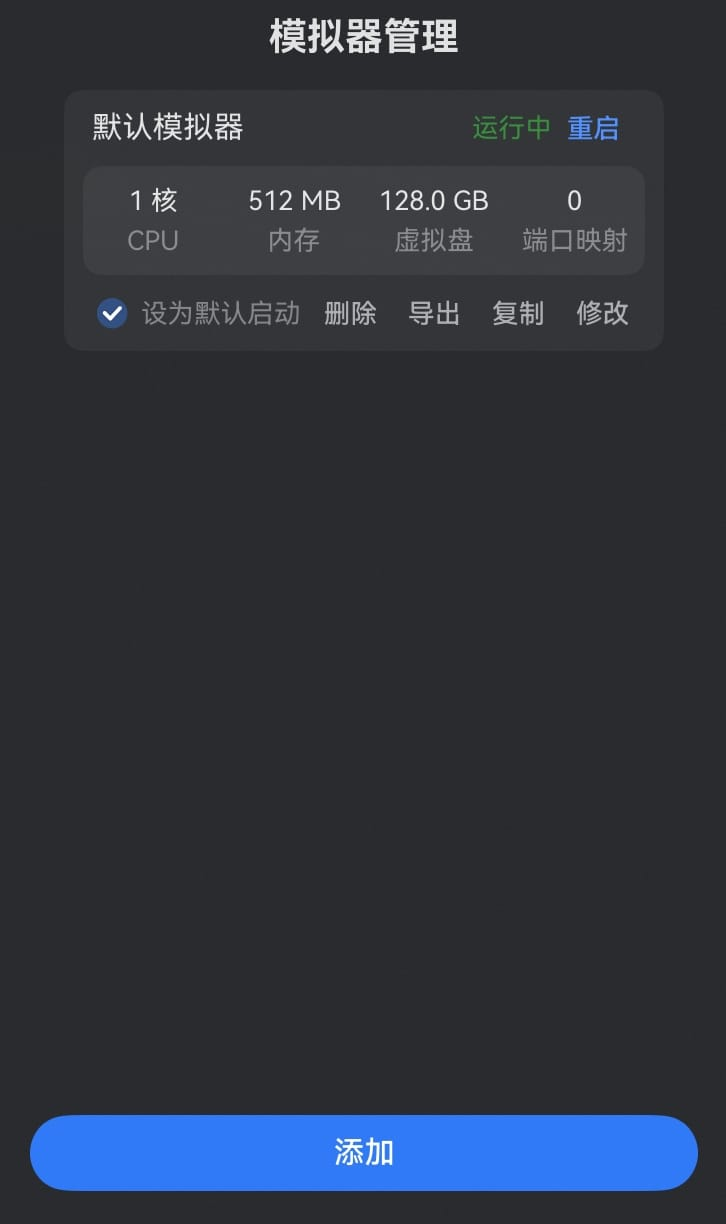
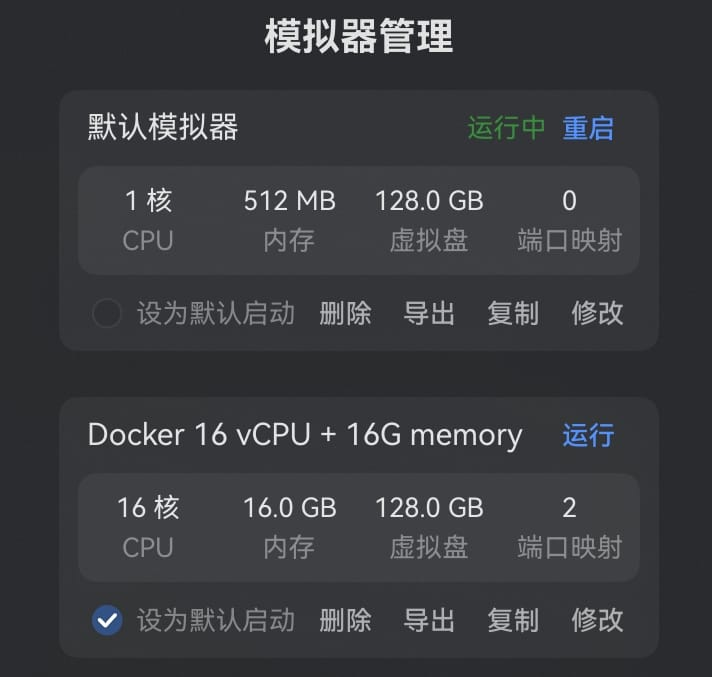
The default emulator runs Alpine Linux with 1 vCPU, 512 MiB memory and a single 128 GiB system disk. The resource limits can be optionally adjusted, effective after HiSH is restarted. Additionally, new emulators can be created with different resource specifications or a different rootfs image.
HiSH - Emulators and available rootfs images
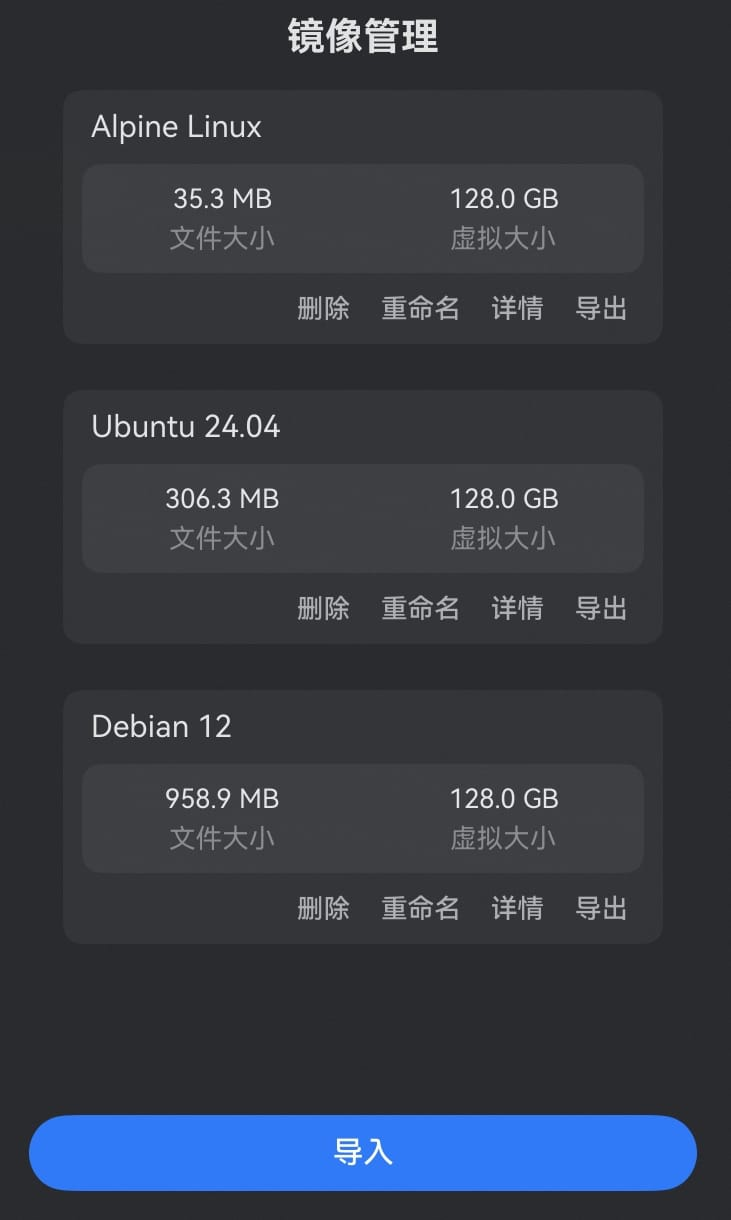
By default, there is a single rootfs image for Alpine Linux. The harmoninux/linux-config project provides 2 alternative rootfs images which can be downloaded and imported to HiSH after decompression.
Advanced users can create, package and import their own rootfs images as well.
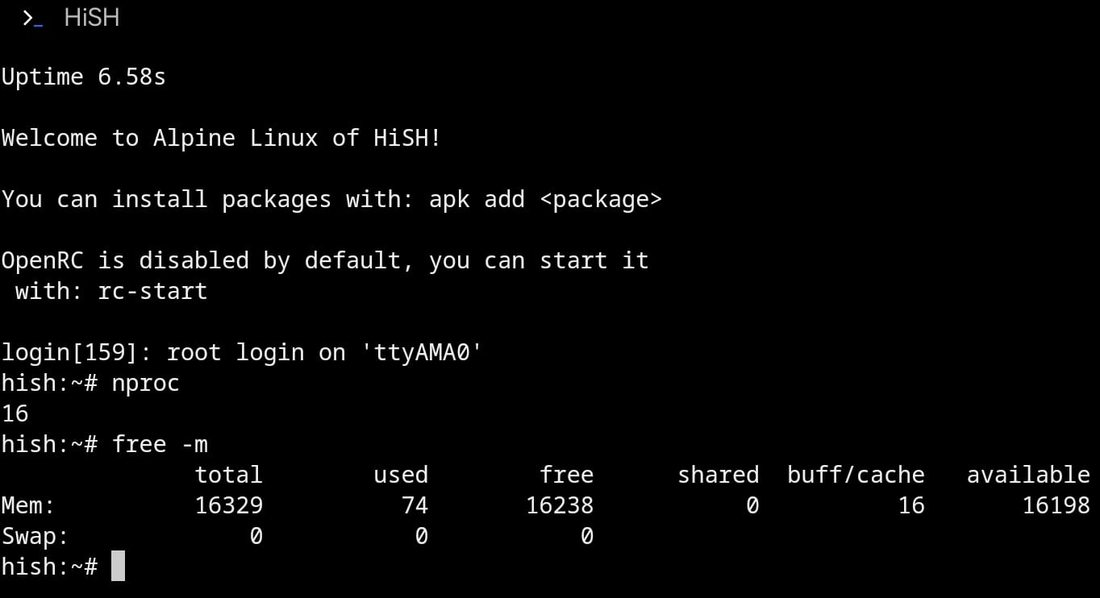
When creating a new emulator, the CPU and memory limits can be specified with a maximum of 16 vCPUs and 16 GiB of memory. The default rootfs image is Alpine Linux but a custom rootfs image can be selected instead.
HiSH - Creating a new emulator with custom resource requirements
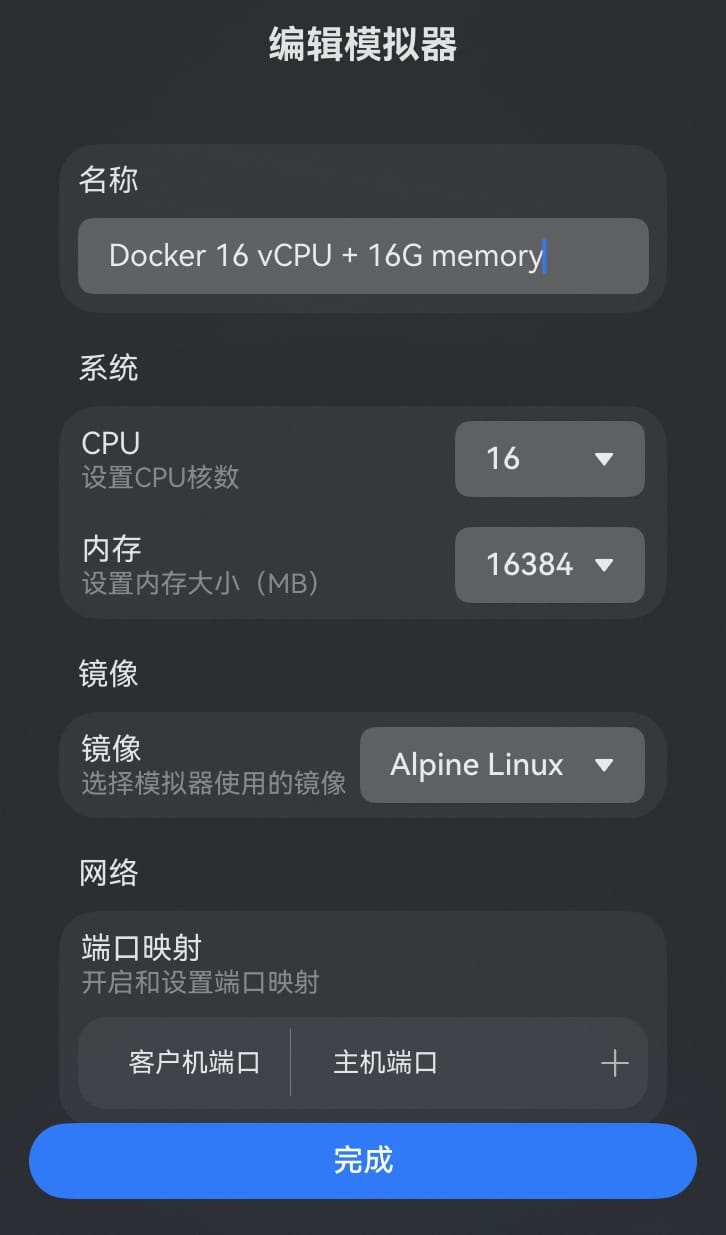
HiSH also supports mapping network ports from the emulated guest to the host laptop. A list of common port mappings are available for selection; for example, mapping port 22/tcp (SSH) from the guest to port 2222/tcp on the host.
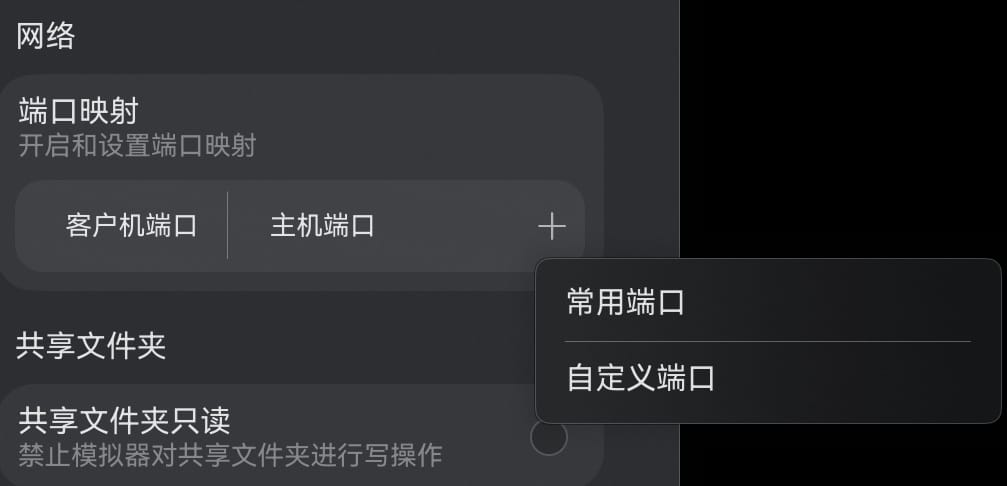
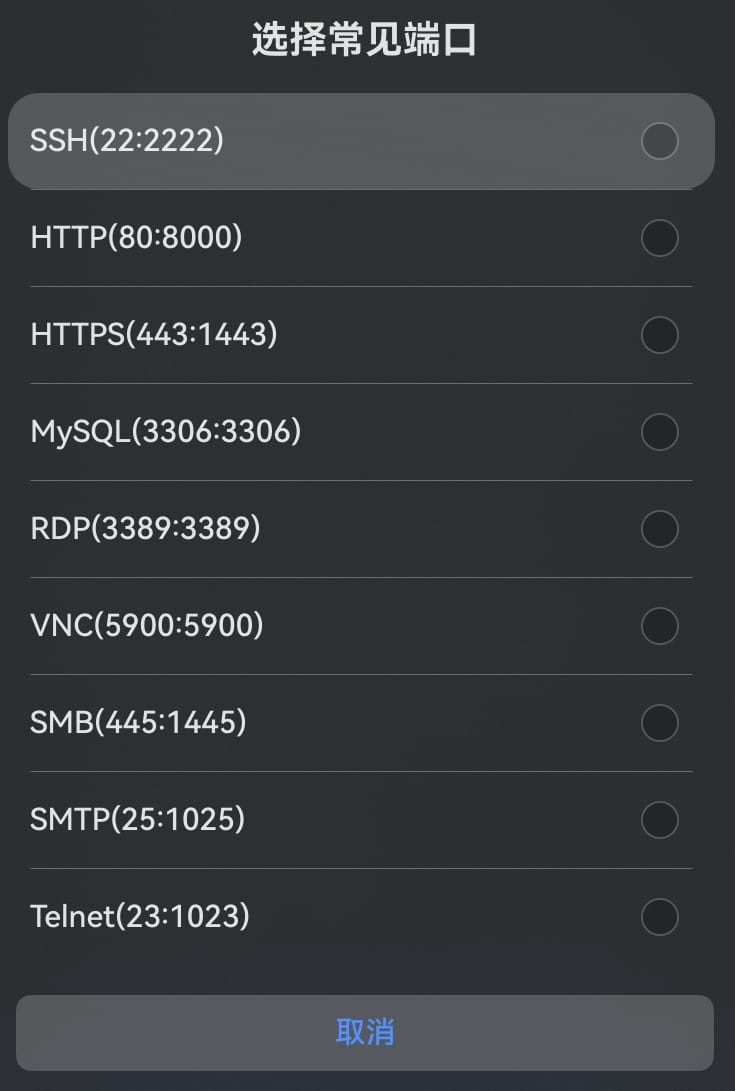
Additionally, if the suggested port mappings are not applicable, users can define their own port mappings as well.
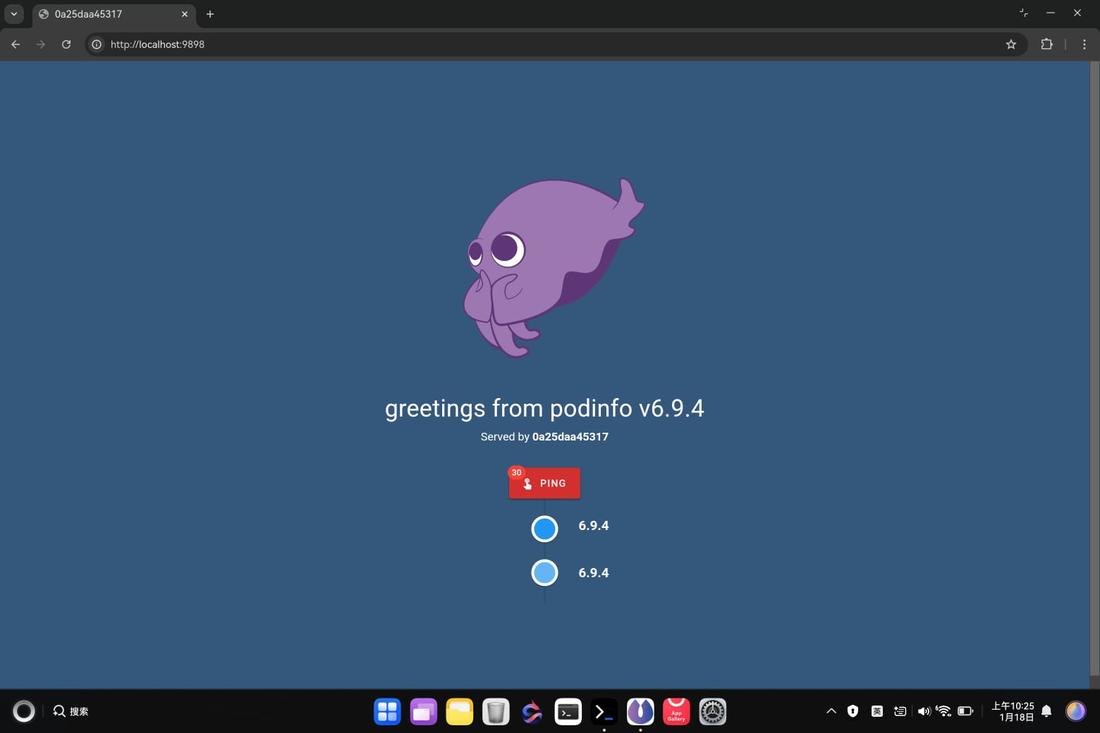
Let’s map port 9898/tcp from the guest to the same port on the host; we’ll use it later for running a sample application in a Docker container: stefanprodan/podinfo
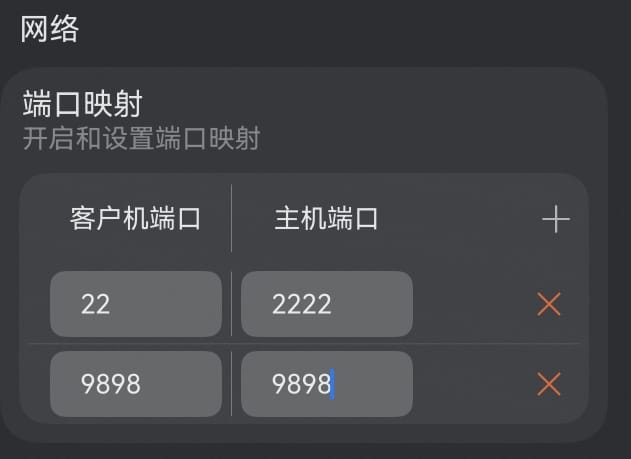
The newly created emulator appears in HiSH and can be selected as the default instance to boot when HiSH is started. This setting takes effect after HiSH is restarted.
HiSH - Sharing files and folders with the host OS
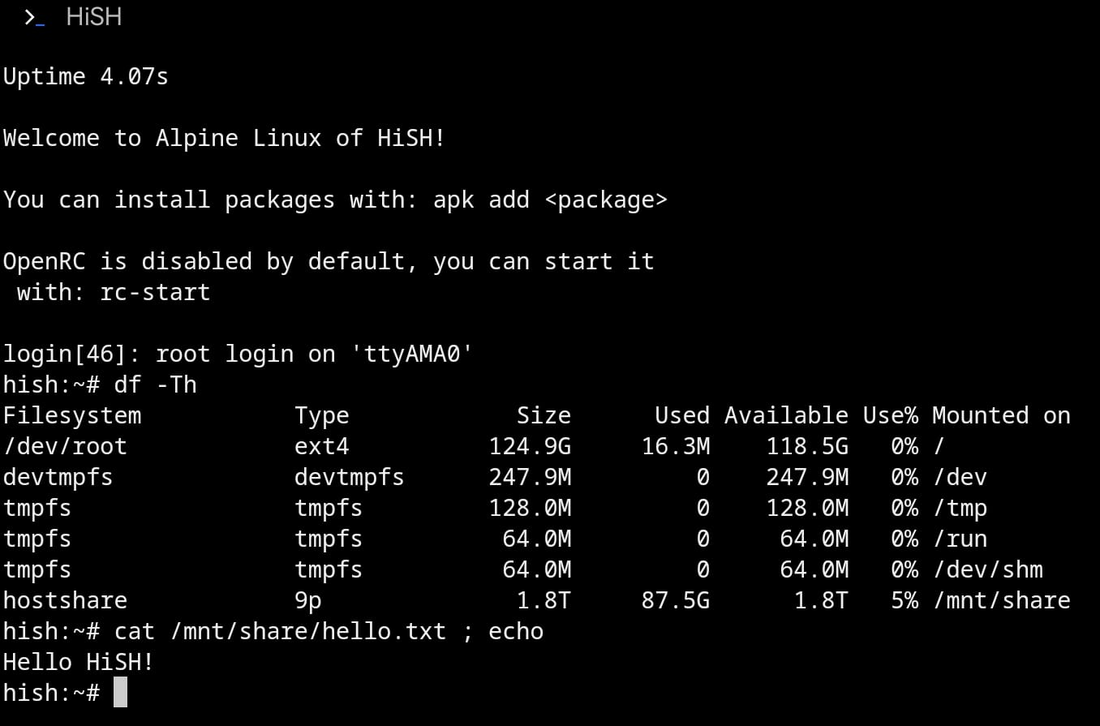
HiSH allows the emulated guest to share files and folders securely with the host OS via a dedicated shared folder. The folder is located under ~/Downloads/HiSH/ on the host and exposed as /mnt/share/ in the guest. This allows users and developers to process files and folders with standard Linux tools before sharing them with the host directly for convenient access, or vice versa.
Limiting the shared files and folders to a specific directory on the host retains the convenience of comparable tools such as WSL2 on Windows, without the risk brought by mounting the entire host system drive such as C: on Windows to the guest which can damage or destroy the host system due to mis-operation on the guest system.

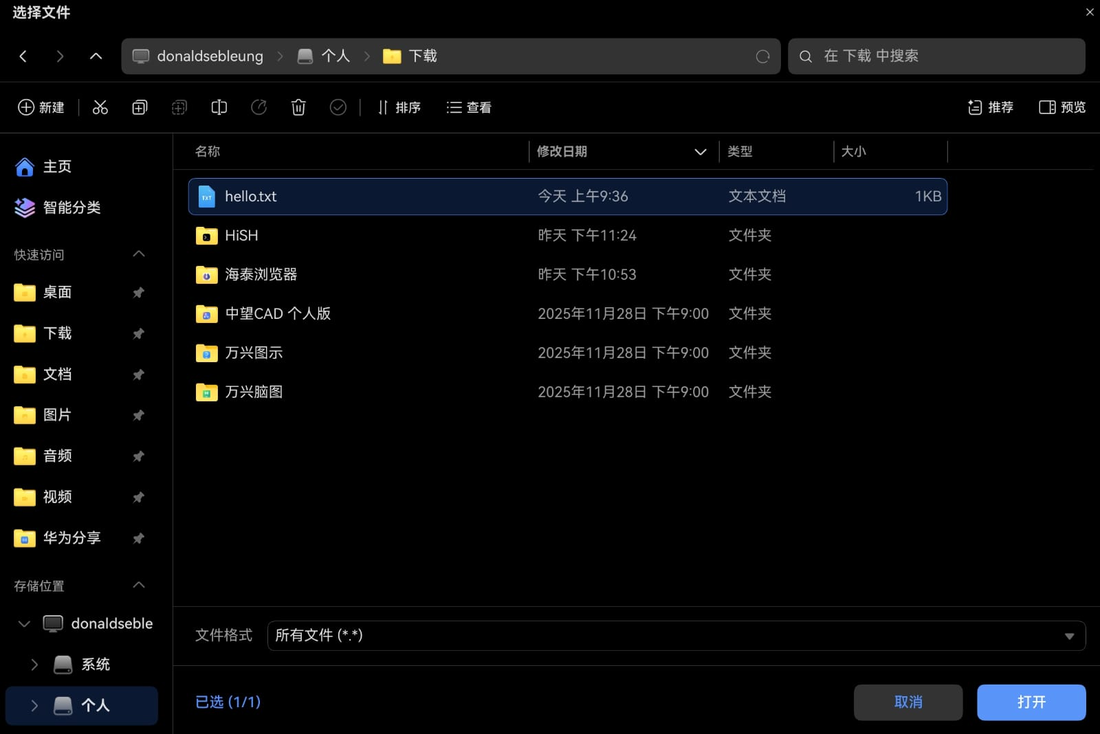
Clicking the “+” button allows us to import an existing file or create a new shared folder from HarmonyOS. The selected file appears in HiSH once imported.

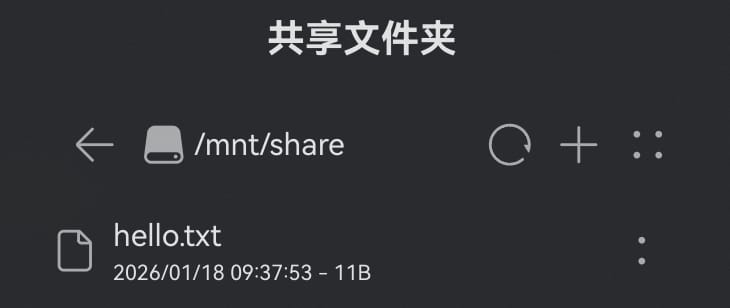
The imported file is now accessible in HiSH within the guest system. For example, we can display its contents with the standard cat utility command.
HiSH - Running containerized applications with Docker
HiSH includes a collection of beginner-friendly user guides and tutorials on using HiSH or Linux in general. It is great for learning and experimenting with Linux.
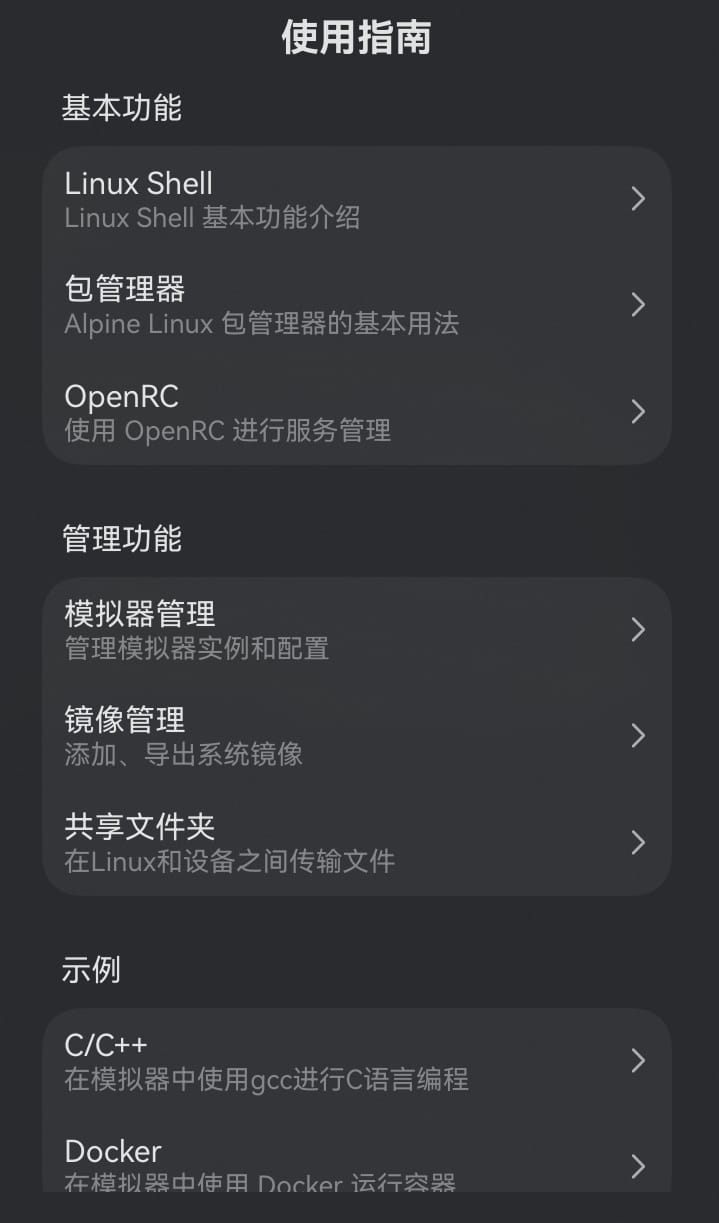
For example, there is a tutorial on how to install, enable and use Docker with HiSH for learning containers and basic software development tasks.
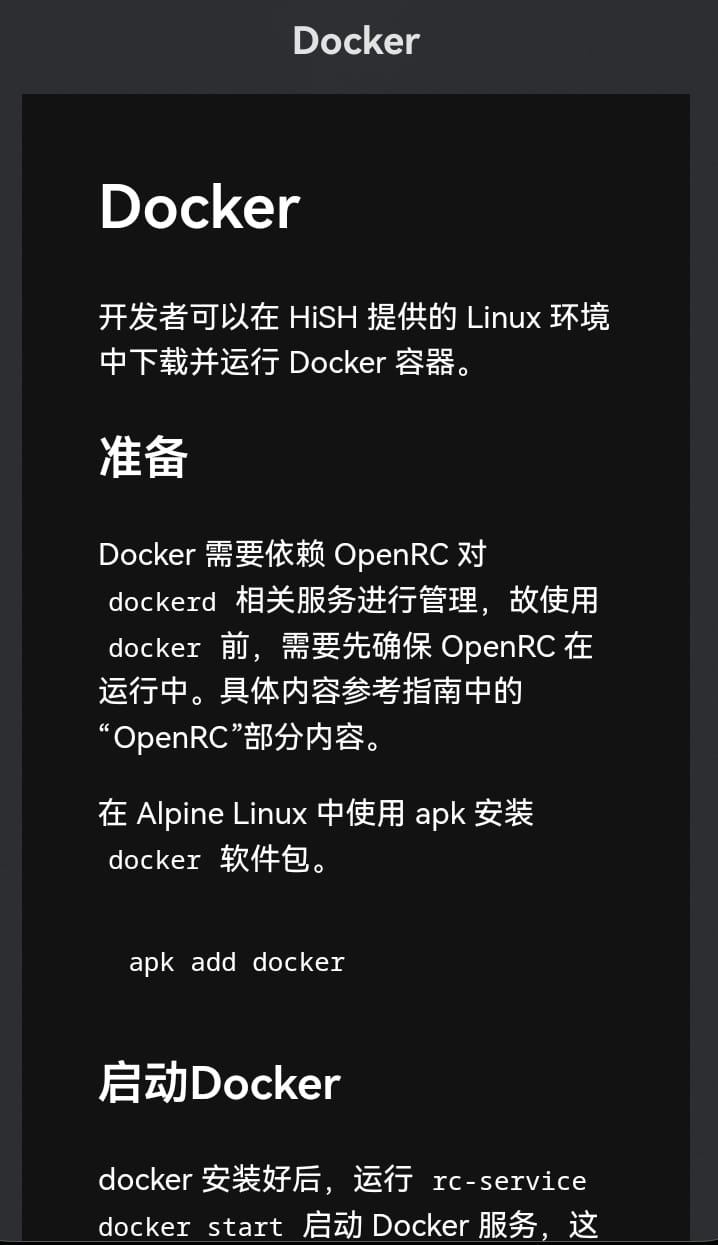
The instructions were straightforward and easy to understand. I was able to follow the Docker tutorial and adapt it to deploy the podinfo application as a standalone container which persists across guest reboots. By combining Docker with the mapped network ports in an earlier step, I was able to access the application directly from my browser at http://localhost:9898/.
Here’s a quick recording of me setting up Docker on HiSH and using it to run the podinfo application as a standalone container. The recording is also available on Asciinema.

HiSH - Advanced features for developers
The version of HiSH from AppGallery relies on pure software emulation with no hardware acceleration possibly due to default system security policies on HarmonyOS 6 or app store policies dictated by Huawei. As seen in the Asciicast recording above, this results in the HiSH emulator to run at a sub-optimal speed not suited for heavy usage and proper software development tasks.
The bundled documentation mentions that the GitHub version enables just-in-time (JIT) acceleration which allows the HiSH emulator to run 5-6x faster when compiled and installed from source instead of using the pre-packaged version on AppGallery.
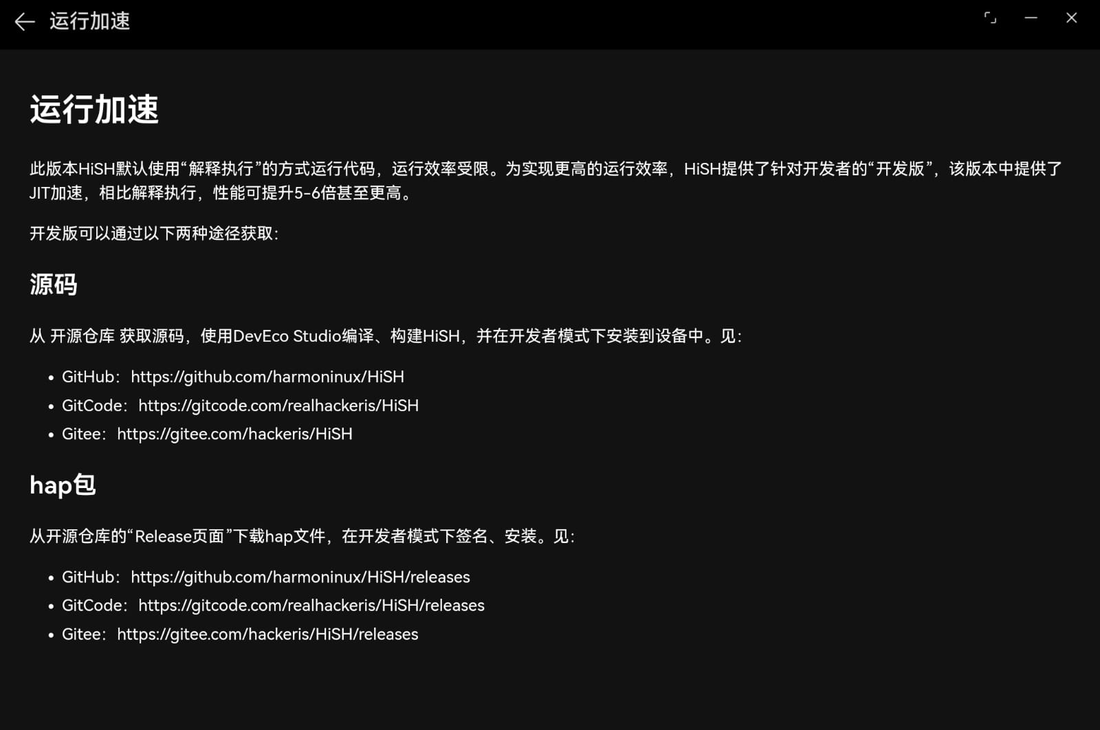
I haven’t tested the GitHub version on my laptop but such performance improvements should make HiSH viable for most light to mid-range Linux software development tasks and general experimentation.
Concluding remarks
The Huawei MateBook Pro 2025 is a great laptop for everyday usage, as well as software development tasks for the most common programming languages and frameworks since HarmonyOS 6.x.
However, being a relatively new PC operating system, it’s not without its shortcomings. Here are a few areas where I think the HarmonyOS experience on the MateBook Pro can be improved.
- Celia: an “Agent Mode” for performing tasks directly on the OS level or integration with MCP servers would be incredibly useful. I remember such feature being mentioned recently with newer Huawei consumer products, so maybe it’s available on the latest Huawei smartphones and tablets, or maybe I missed the option already available and sitting somewhere on my laptop waiting to be discovered (-:
- CodeArts: support for additional programming languages such as Go or Rust would further expand the developer userbase and make software development on the MateBook Pro fun instead of just usable
- HiShell: really looking forward to openEuler mode for a proper Linux terminal with hardware acceleration for serious prototyping and development for stuff that’s just designed to run on Linux such as Kubernetes and AI/ML workloads
- HiSH: excellent proof-of-concept (POC) that running a full-fledged Linux system on HarmonyOS 6.x is possible, though perhaps a bit slow for proper prototyping and software development due to the lack of hardware acceleration. Kudos to the HarmonyOS developer and enthusiast who made it possible!
That said, the HarmonyOS ecosystem is expanding rapidly and I anticipate that many of the issues or shortcomings I mentioned will be fixed in due time. Looking forward to upcoming developments with the HarmonyOS ecosystem and how it can provide a viable alternative to the Microsoft and Apple monopoly over the PC market.
I hope you enjoyed this article and stay tuned for updates ;-)
Subscribe:


![[Valid RSS]](/assets/images/valid-rss-rogers.png)
![[Valid Atom 1.0]](/assets/images/valid-atom.png)